Short answer: Sales Navigator rarely shows emails or phone numbers, and it can't export your leads. Here's how to get them:
- Export your Sales Navigator list to a CSV file with a free Chrome extension.
- Upload the CSV to Kipplo Enrich and choose Name + Company.
- Download the same file with work emails and direct-dial phone numbers added.
Each enriched row costs 1 credit, and rows where Kipplo finds nothing are free.
Screenshots from Kipplo Enrich, checked in October 2026.
What you need
- A Sales Navigator account with a saved lead list
- Google Chrome on a computer
- A free Kipplo trial: 50 credits, no credit card
Does LinkedIn Sales Navigator provide email addresses?
Only in a few cases. According to LinkedIn Help, a lead's contact details can come from just three places:
Where it comes from | When you'll see it |
|---|---|
The person's profile | Only if they added it and share it with you. By default, LinkedIn shows contact details to 1st-degree connections (LinkedIn Help). |
Your team | Only if you or a teammate typed it in. |
Your CRM | Only if CRM sync is on and your CRM already has it. |
That leaves out the people you most want to reach: new prospects you aren't connected to yet. Here's how to get their details.
Step 1: Export your Sales Navigator leads to a CSV
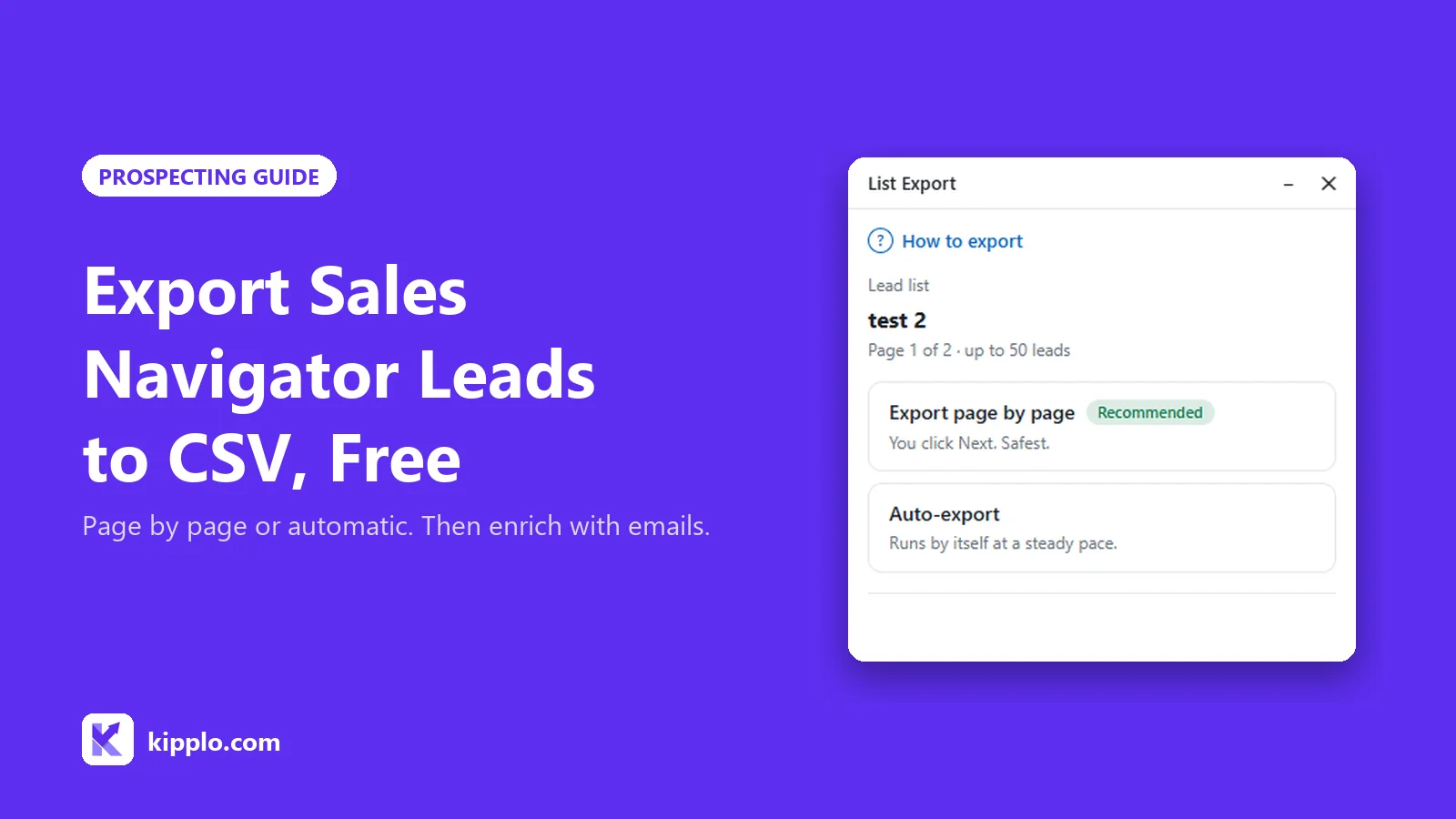
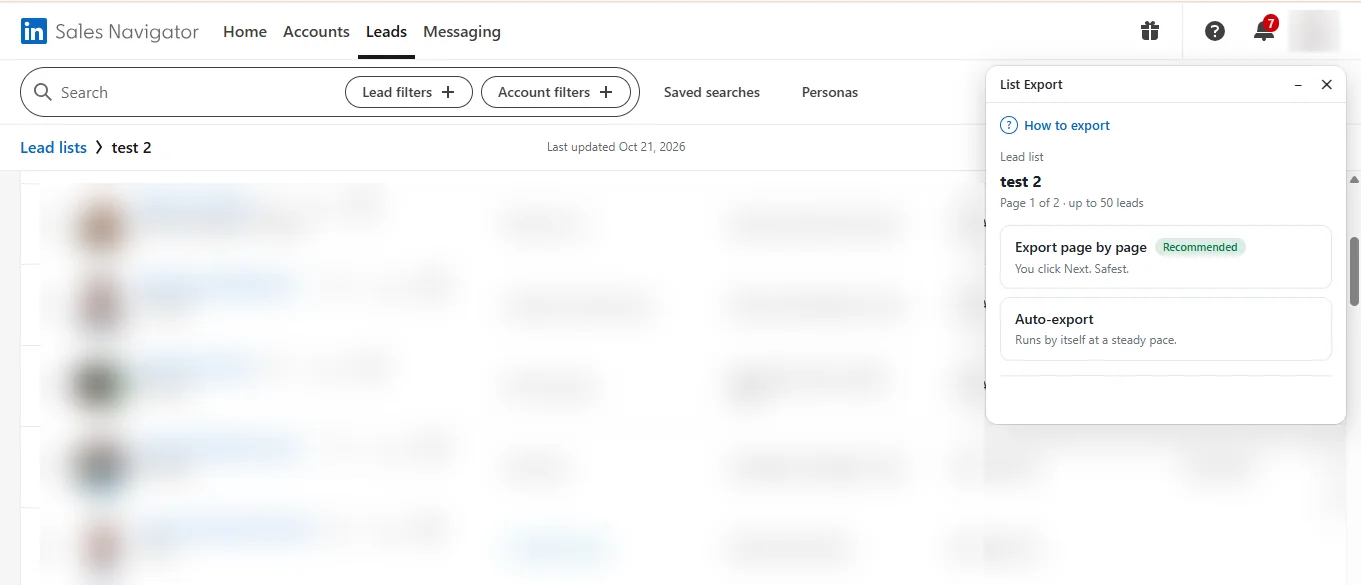
Use Sales Navigator List Export, a free Chrome extension shared by Kipplo:
- Open your lead list in Sales Navigator and click the extension icon.
- Choose Export page by page or Auto-export, then click Start.
- When the box says All done, click Download CSV.
The CSV includes each lead's full name, first name, last name, job title, company and location. Kipplo uses the name and company to look for their contact details.
First time? Our full guide covers installing the extension and exporting big lists: How to export leads from Sales Navigator.
Step 2: Upload the CSV to Kipplo Enrich
Upload your file
- Sign in to Kipplo, open Enrich, click Upload CSV and drop in your Sales Navigator file.
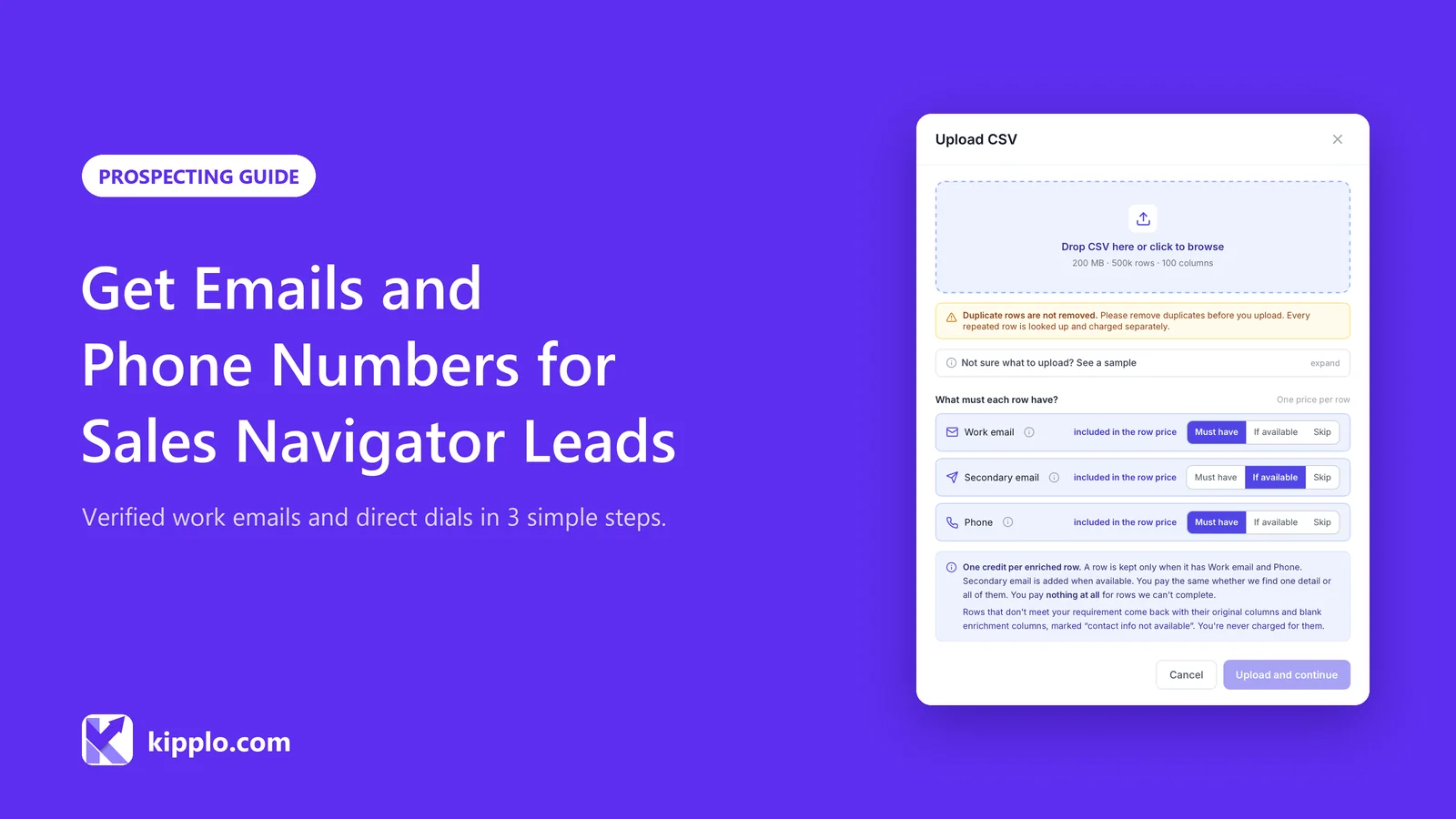
- Under "What must each row have?", choose one of three options for work email, secondary email and phone:
- Must have: Kipplo fills the row only if it finds this detail. Rows missing it come back blank and cost nothing.
- If available: Kipplo adds it when it can, and keeps the row either way.
- Skip: Kipplo won't look for it.
- Click Upload and continue.
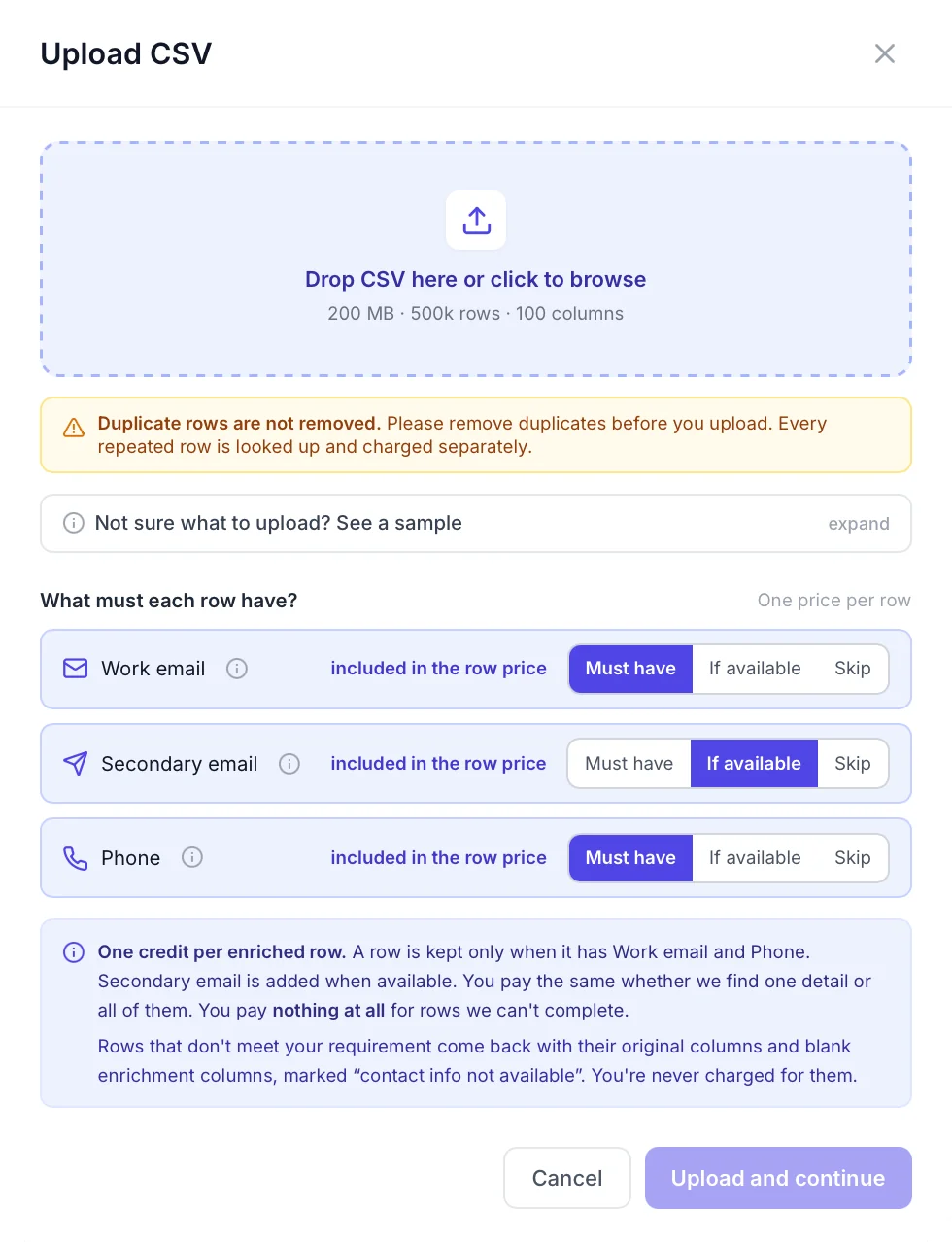
Not sure which to pick? For an email campaign, set Work email to Must have. To call as well, set Phone to If available.
Choose how to match your leads
On the Review and start screen:
- Set the enrichment mode to Name + Company. Your export's LinkedIn ID URL column holds LinkedIn's internal member ID, which Kipplo can't look up, so names and companies are what it matches on.
- Under "How do you identify the person?", choose Full name, then select your Full name column. Your export also has separate First name and Last name columns if you would rather use First + Last name.
- Under "How do you identify the company?", choose Company name, then select your Company column.
- Check the sample preview of the first five rows, then click Start enrichment.

No surprises: Kipplo estimates how many credits you'll need before you start. Any credits it doesn't use go back to your balance.
Step 3: Download your emails and phone numbers
Kipplo emails you when your file is ready. Click the eye icon on the finished row, then Download enriched CSV. The file stays in your account, so you can download it again any time.
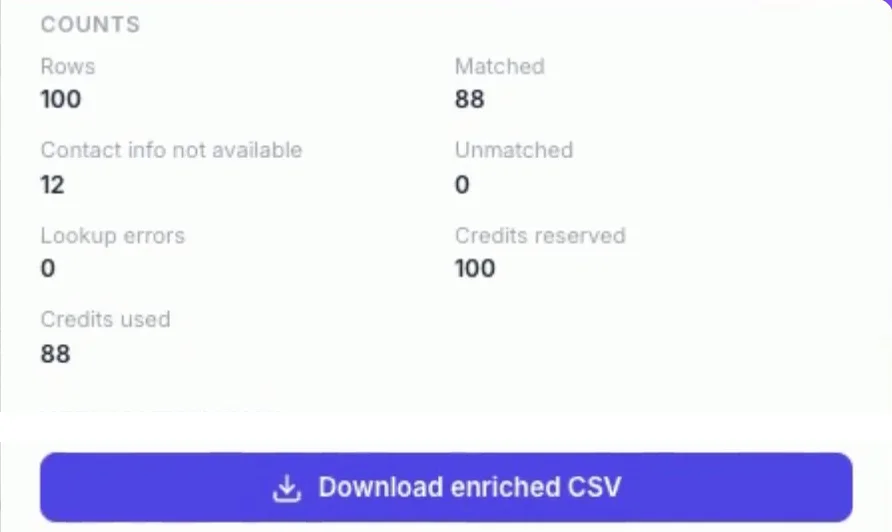
Example: before and after
Your original columns come back untouched, with the new ones added alongside:
Column | Before | After |
|---|---|---|
Full name | Alex Morgan | Alex Morgan |
Job title | VP of Sales | VP of Sales |
Company | Northwind | Northwind |
empty | alex.morgan@northwind.com | |
Phone | empty | +1 415 555 0142 |
Sample data: Alex Morgan and Northwind are made up for this example.
You get more than contact details. For each person, you may also get seniority, department and a LinkedIn profile. For their company, you may get the website, industry, headcount, revenue and address. Kipplo adds whatever it has on record. A status column shows what it found, so you can filter out the rows it couldn't fill.
How many emails and phone numbers will you find?
There's no single number: no tool finds everyone, and some lists do much better than others. Five things make most of the difference:
What affects your results | Why |
|---|---|
Company names | Sales Navigator shows whatever name a company uses on LinkedIn, and short or unusual names match less well. |
Type of company | Established companies with a website are easier to find than freelancers. |
Country | Some countries have more contact data on record than others. |
Recent job changes | Someone who just moved jobs may not have a new work email on record yet. |
Which detail you want | Direct-dial numbers are usually harder to find than work emails. |
The easiest way to find out is to try your own list with the free trial's 50 credits.
How much does it cost to get emails for your Sales Navigator leads?
Pay per row with credits, or go unlimited if you enrich lists often.
Credits: pay per row
- 1 credit per enriched row, whether Kipplo finds one detail or all three. You're never charged per field.
- Want emails only? With Work email on Must have, you only pay for rows that include an email.
- Nothing found, nothing charged. Those rows come back marked "contact info not available".
- Duplicate rows are billed separately. Enrich doesn't merge them, so if you combined several lists into one file, remove duplicates before you upload.
- Try it free: 50 credits for 7 days, no credit card needed.
Enriching lists every week? Go unlimited
With Kipplo's unlimited plans you stop counting credits altogether (a fair usage policy applies):
- Agency Plan: $599/month. Built for agencies and larger teams.
- Emails & Phones: $95/month. For smaller teams that just need emails and phones.
Both are billed annually.
Enriching lists for clients? The Agency Plan also includes Data Explorer, ready-made datasets and API access, and extra team members cost less than on Emails & Phones. Compare plans.
Turn your Sales Navigator list into emails and phone numbers
Start your free trial: no card needed →Tips to get more from your list
- Keep your list focused. Use specific Sales Navigator filters to build a list of prospects who match your ideal customer profile, so you don't spend credits on the wrong people.
- Refresh older lists. People change jobs, so re-enrich before a new campaign.
- Keep it relevant. Email people about their work, and make it easy to opt out.
Then put your list to work. Import the CSV into your CRM (HubSpot, Salesforce and Pipedrive all accept it), load it into your email tool, or call your top leads first. New to cold email? Read our B2B email marketing guide.
Only need one or two contacts?
Look them up for free. These tools need the person's regular LinkedIn profile link, the linkedin.com/in/name kind. A Sales Navigator link won't work, so open the lead's profile from Sales Navigator and copy the address your browser lands on.
- Find email from LinkedIn: returns the verified email on record.
- Find phone number from LinkedIn: returns the direct or mobile number on record.
Each gives you 3 free lookups a day, with no sign-up. Browsing LinkedIn every day? The Kipplo Chrome extension shows emails and phones right on LinkedIn profiles, though it doesn't work inside Sales Navigator.
Frequently asked questions
Does LinkedIn Sales Navigator give you email addresses?
Rarely. It shows contact details only if the person shares them with you, a teammate typed them in, or they come from your CRM. For everyone else, you need a tool such as Kipplo Enrich.
Can I get phone numbers too?
Yes. Kipplo Enrich looks for a work email, a secondary email and a direct-dial phone number in the same upload, for 1 credit per row.
How much does it cost?
1 credit per row it fills, and rows where it finds nothing are free. The free trial gives you 50 credits for 7 days, with no credit card. Unlimited plans start at $95 a month, billed annually.
Is there a plan for agencies or large teams?
Yes, the Agency Plan. It covers unlimited emails, phones and Enrich, and adds Data Explorer, ready-made datasets and full API access. It comes with 2 members, and extra members cost less than on Emails & Phones.
Can I upload LinkedIn profile URLs instead?
Yes, as long as they are the regular linkedin.com/in/name kind. A Sales Navigator export holds LinkedIn ID URLs, which Kipplo cannot look up, so match those leads by name and company.
Is it legal to email these contacts?
Yes, in most countries, as long as you email people about their work and make it easy to unsubscribe. The rules vary by country: Europe has GDPR and the US has CAN-SPAM. Check what applies where your leads are.